Interface and Navigation
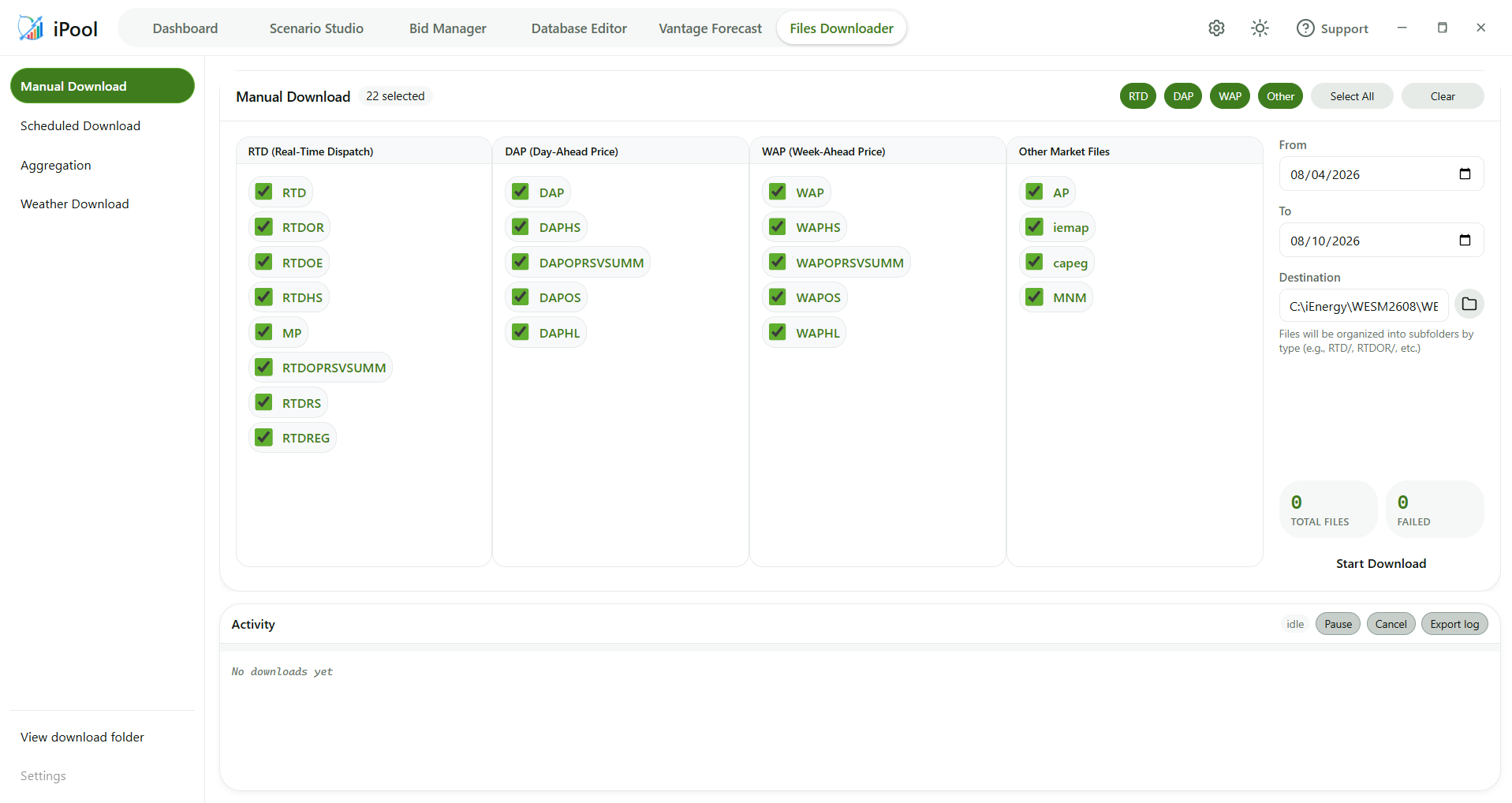
Layout
The Files Downloader tab uses a three-zone layout:
- Left: Operation Rail — a narrow vertical list of operations (Manual Download, Scheduled Download, Aggregation, and additional operations depending on your setup)
- Centre/Right: Operation Area — the panel for the active operation fills this area
- Bottom: Activity Dock — a persistent progress log visible regardless of which operation is active
Operation Rail
The operation rail lists three always-visible operations:
- Manual Download
- Scheduled Download
- Aggregation
The currently active operation is highlighted with a visual indicator.
Manual Download is the default active operation when the tab first opens.
The rail is a navigation element labelled "Files Downloader operations" for screen readers.
Additional items may appear depending on your setup:
- Weather Download — visible only when licensed for iEnergy Developer tier (or running in dev mode).
- Historical Store — visible in the Electron desktop app only.
- Shared Files — visible in online (server) deployments only.
The bottom of the rail contains two additional buttons:
- View download folder — opens the OS file explorer at the last-known download folder.
- Settings — present in the interface but permanently disabled; this feature is not yet implemented.
The Settings button is currently disabled and has no function. It is reserved for a future release.
Activity Dock
The Activity Dock is a permanent component at the bottom of the main area. It is always visible regardless of which operation panel is active.
The dock contains:
- Title: "Activity"
- Status indicator: shows "running" (with an amber animation during active operations) or "idle"
- Progress bar: a horizontal fill bar from 0 to 100%
- Log: a timestamped list of activity entries, each tagged
info,success,warning, orerrorfor colour coding- Entry format:
[HH:MM:SS] message - The log auto-scrolls to the newest entry
- Shows "No downloads yet" when empty
- Capped at 500 entries; when the cap is reached, the oldest 100 entries are dropped
- Entry format:
- Pause/Resume button — enabled while a download is running (shows "Pause") or paused (shows "Resume"); disabled in all other states
- Cancel button — enabled while a download is running or paused; disabled once cancelled, idle, complete, or in error
- Export log button — exports the current Activity Dock log
Keyboard Shortcut
| Shortcut | Action |
|---|---|
| Ctrl+3 | Switch to the Files Downloader tab |
The Ctrl+3 shortcut fires only when keyboard focus is not inside a text input, grid cell, or ARIA widget.
Important Fields, Buttons, and Options
| Control | Description |
|---|---|
| Left rail | Switches between the available operations: Manual Download, Scheduled Download, and Aggregation. Additional items (Weather Download, Historical Store, Shared Files) may appear depending on your licence tier and deployment type. |
| File type pills | Toggle buttons for each IEMOP file type. No types are pre-selected at startup. Click a pill to select or deselect it. |
| Select All / Clear | Selects or deselects all file types at once. |
| From / To date fields | Set the date range for the download. Both fields enforce a minimum date of 2024-08-13 and a maximum of today. |
| Browse | Opens a folder picker to choose the destination for downloaded files. The chosen path is remembered for your next session. |
| Start Download | Begins the download. Disabled until at least one file type, both dates, and a destination folder are all set. |
| Activity Dock | A log panel at the bottom of the screen showing timestamped progress for every file: downloaded (✓), skipped (⊙), or failed (✗). |
| Total Files stat tile | Shows the total number of files downloaded when the run completes. |
| Failed stat tile | Shows the number of files that could not be downloaded after retries. |
The Settings button in the bottom of the left rail is not yet implemented and is currently disabled.
Panel Keep-Mount Behaviour
Once an operation panel is first opened, it remains mounted in memory for the lifetime of the tab session. This means in-progress downloads are not interrupted when switching between operations. Panels are hidden and shown using v-show rather than being destroyed and recreated.